Git for Beginners

In the previous blog we have understood what is Git and why do we need it. In case you haven’t checked it out yet, do give it a read to understand this blog better. Now we will dive deep into core Git terminologies and some essential commands required to use Git effectively. The best thing about Git is that it gives full control to the developer, what should be tracked, what should not be tracked, everything is in the hands of the developer.
A Quick Recap
Git is basically a version control system for your projects when you are collaborating with multiple developers on the same project. It keeps tracks of the changes made and who made the changes. Think of it as a timeline where you can see what happened at what time.
We also understood why Git is important, without it collaboration quickly turns into chaos.
So before understanding the commands, we should have a fair understanding of git core terminologies that we would be using moving forward.
Git Core Terminologies
Repository
It is just a folder where Git tracks everything- the code, its history and every change that was made.
Commit
As the name suggest, commit means to save the changes made in the project. It is like a checkpoint of your project that records what changed since last commit.
Branch
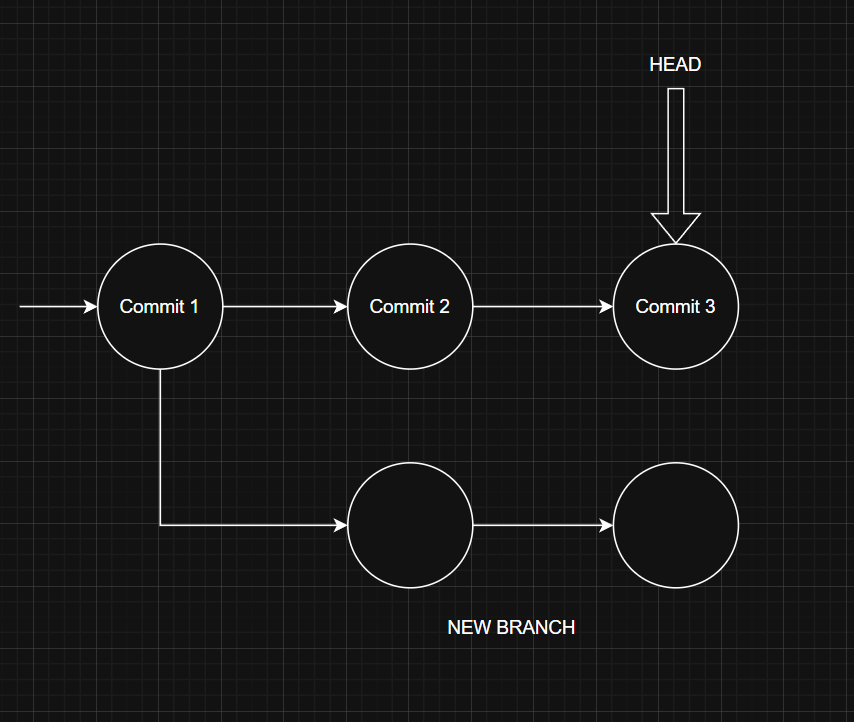
Assume the main code of your project as the trunk of a tree. A branch grows out from the trunk and can flourish independently. In the same way, a Git branch lets you experiment, make changes, or try new ideas without disturbing the original code. If things go well, the branch can be merged back; if not, it can be safely discarded.
Head
Head points to the current commit (or branch) you are currently working on.
Remote
It a commonplace where everyone sync up their code (for example-Github). It acts as the final source of truth for the whole team.
Clone
It means to create a full copy of the existing repository on your local machine.
Essential Git Commands
The first command we need to use is
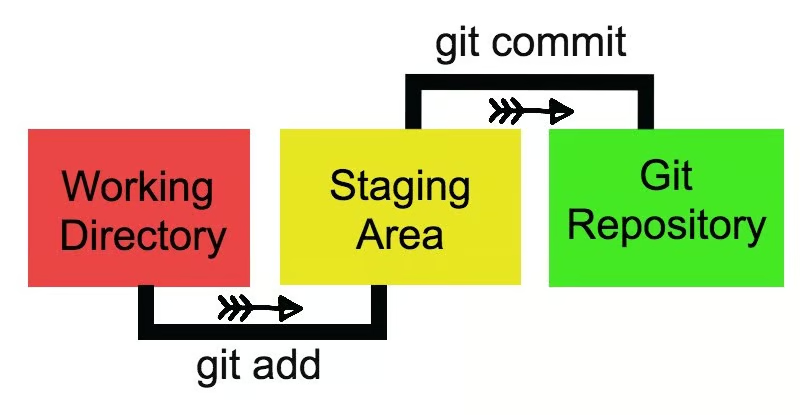
git initThis commands initializes a new Git repository in your project. In simpler terms, by using it you are telling Git that you want it to start tracking your project.
Now to add a file we need to use
git add <filename>This will put the file added to the staging area. It means the file is ready to be committed.
To commit we simply use
git commit-m "here goes my comment"This commits the changes made. You can also provide comments to make it clear what changes you made. For example- git commit-m “ worked on a new feature”.
git logshows the complete commit history of the project, including commit messages, authors, and timestamps.
To check the current state of your working directory—what files are modified, staged, or untracked—we use
git statusTo check the differences between 2 commits we use
git diff <commit-hash-1> <commit-hash-2>If you want that the changes made in the last commit should be reverted you can either use
git revert
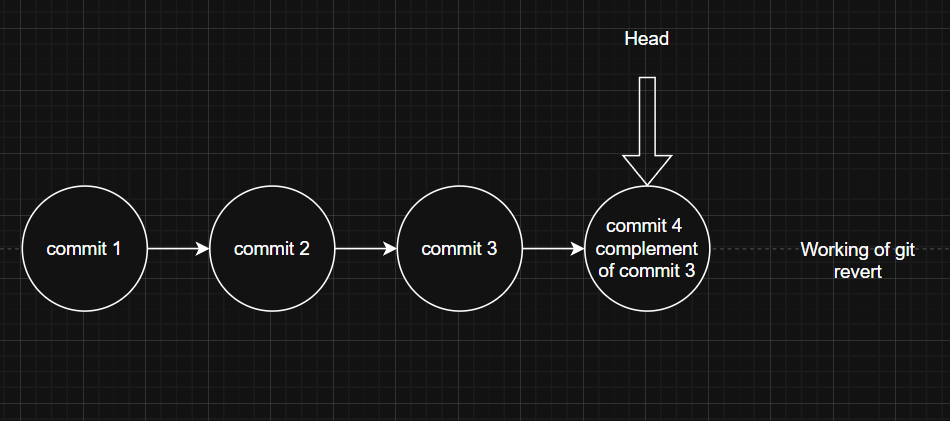
This creates a new commit that undoes the changes made by the previous commit, without deleting history. Or you can use
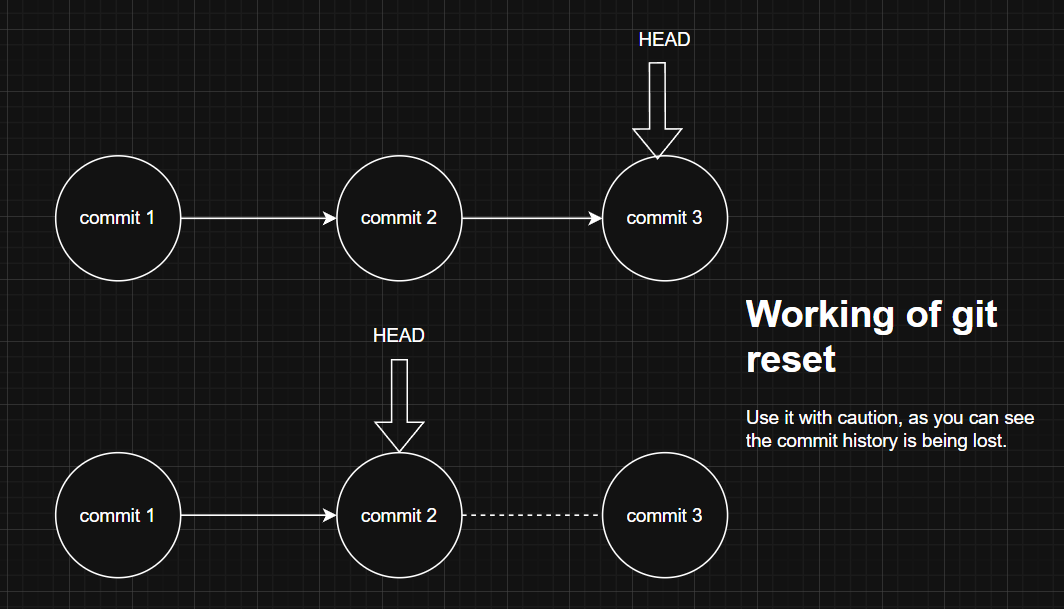
git reset --hard "hash of the commit"
This moves the HEAD pointer back to a specific commit and permanently discards all changes after it.
Now to understand these commands more deeply here is a conversation between Raj, A student working on a project and git in our own desi manner.
Raj: git init kardiya Git bhai ek repository bana dena mere project ke tracking ke liye.
Git: Ok bhai
**Raj adds to file names maincode.py and featuretesting.py**
Raj: Bhai git add<maincode.py>.
Git: Ok done lekin featuretesting.py ko add nhi karna?
Raj: Nhi bhai uske liye mai abhi sure nhi hu aur refined karna. Now git commit.
Git: committed. Changes save karliye hai.
Raj: jara git log karke history dikhana
Git: Ye lo sir poori commit history . Kab kisne aur kya changes kiye the sab hai.
Raj: Thanks. Bhai mujhe ye wala commit pasand nhi aa rha hai.
Git: No worries bhai bus git reset —hard karke mujhe uss commit ki hash value dede mai HEAD ko uss commit par le jaunga aur baaki changes delete ho jayenge. Tho wo changes nullify ho jayenge.
Raj: Thank you Git. Tum na hote tho tracking kitni mushkil hoti.
Git: No problem mate always at your service.
Conclusion
At this point, you should have a clear idea of what Git is, why it exists, and how it actually works behind the scenes. You’ve seen how changes are tracked, how history is maintained, and how a few essential commands can save you from a lot of confusion. You don’t need to remember everything right now, what matters is understanding the flow. With practice, these commands will start feeling natural, and Git will become a tool that works for you, not something that scares you.
